Marketplace automation: Creating WebOps tasks in Asana from Jira stories
 Updated Jun 9, 2026

Keeping work in sync across project management systems is a common challenge for growing teams. When development and execution live in different tools, even well-defined processes can break down. This leads to duplicate data entry, missed handoffs, and delays that compound as volume increases.
Automating the flow of work between systems like Jira and Asana helps teams reduce friction, improve visibility, and scale operations without adding manual overhead.
For Celigo’s Technical Product Marketing (TPM) team, this challenge became increasingly visible as the number of EDI-focused marketplace solutions grew.
A manual publishing process introduced operational risk and significant time cost, prompting a broader effort to examine the workflow, quantify its impact, and redesign it around automation.
Here is our step-by-step process to create end-to-end webpage publication automation:
- Jira → Asana (this post): Automatically creating structured Asana tasks from Jira Connector Stories to keep development status and publication work in sync
- Asana → WordPress: Using those Asana tasks to dynamically generate WordPress drafts and publish connector pages to the website
The TPM team used Celigo’s intelligent automation platform to create new marketplace web pages for new trading partner connectors. This automation reduced the process time by over 99% and saves nearly 1,000 hours annually.
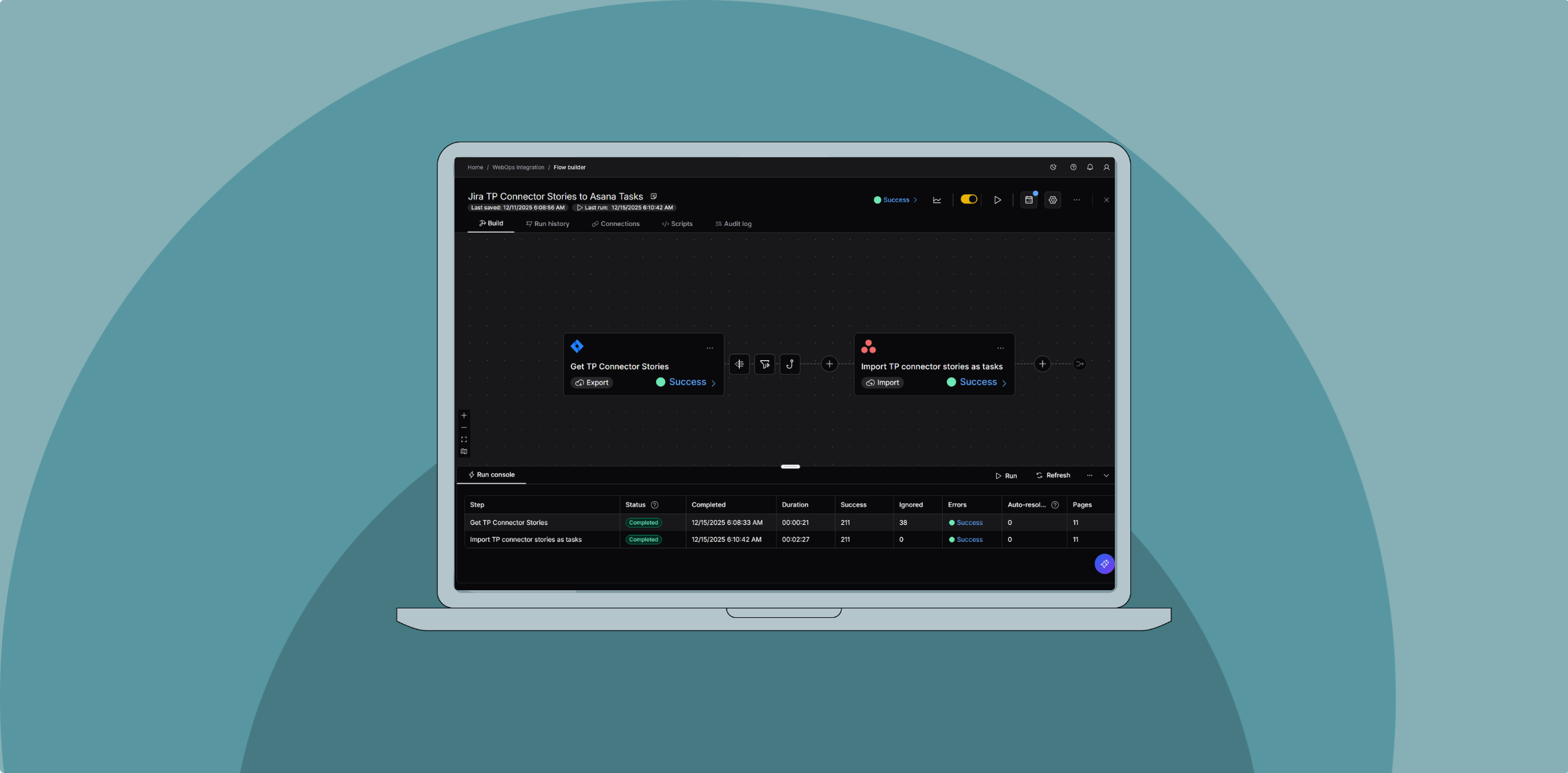
We’ll look closer at the first flow in this integration, establishing a reliable foundation by synchronizing Jira and Asana so downstream automation can operate consistently and at scale.
Stories are created in Jira by Product Operations and Engineering to track the development process for new Trading Partner (TP) connectors. These EDI-focused connectors are used with Celigo’s B2B automation solution, B2B Manager. The TPM team manages publication tasks in Asana, corresponding to newly released TP Connectors.
Before automation, the team manually created and updated tasks based on Jira Stories—an error-prone, time-consuming step.
To replace and optimize this manual process, this flow will:
- Pull new Connector Stories directly from Jira
- Derive key details needed for webpage publication
- Keep Asana tasks up-to-date as Jira issues evolve
Let’s explore the technical details of how this flow was built, starting with the Jira export.
Jira Export: Get TP connector stories
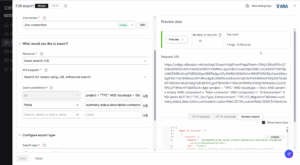
The flow begins with a Jira export step. Using the “Issue Search” API and a JQL query, the team filters for Connector Stories:
- Criteria: TP connectors with a parent “Connector” object. Components and labels for Stories related to Connector enhancements or otherwise are excluded.
- Fields: both standard and custom Jira fields are retrieved (customfield_{{id}} syntax).
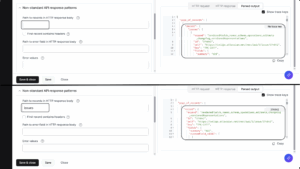
By configuring the “Path to records” as issues, the flow unpacks Jira’s nested array so each Story travels as its own record—making downstream transformations much simpler.
Transformation
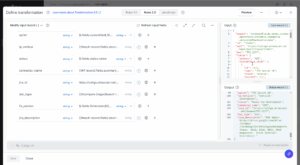
Next, a transformation step prepares fields for Asana:
- Simple renames: e.g., Jira status is mapped into a straightforward status field.
- Handlebar helpers + Regex: Extract verticals, doc types, and other key values from the Jira description according to known text patterns using the #regexSearch helper.
- Concatenation: Multi-paragraph descriptions stored in arrays are looped and joined into a single text string for easier reference in Asana.
This ensures every record has the right fields exposed and formatted before moving on.

The TP vertical is entered into the Jira story’s description by POPS and engineering in a particular format. Since we know the format the text will follow, we can use handlebar helpers to search the description and match the format with Regex. Something similar is done to determine the industry vertical and EDI document type.
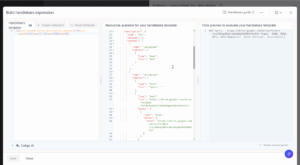
In the description field, each paragraph of the description is an object nested in an array called “content”. We can use handlebar helpers to loop through the text in this array and build the description as a single String corresponding to one field. We’ll map the description over to see more detail on the connector directly from Asana.
Output Filter
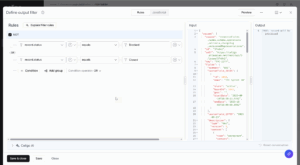
To avoid clutter, the flow filters out any Story marked as Blocked or Closed. Only eligible, in-progress connectors proceed to task creation.
Hook
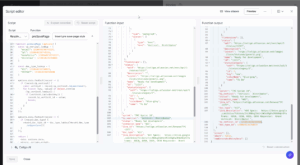
Asana requires internal IDs for custom fields (industry vertical, doc type, etc.). A hook string resolves values extracted from Jira with the correct Asana field IDs, then outputs them as new fields ready for import.
Asana Import: Import connector stories as tasks
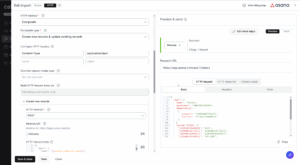
With the Jira records ready, the flow pushes them into Asana using an upsert approach. This combines insert and update operations. To update, we compare an incoming Jira story to existing tasks. If a match is found, we update the matching task. If there is no match, a new task is created.
Create new tasks
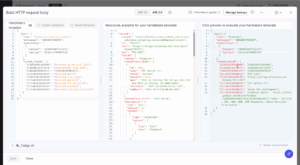
Building the request body for new Asana tasks is straightforward, but it requires collecting several internal IDs.
These can be retrieved from URLs in Asana and simple GET requests:
- Asana Project: Each task must belong to the correct Workspace and Project. Both IDs are visible in the URL when viewing the project in Asana.
- Section ID: A GET request for project sections returns the internal IDs of each section. A dedicated section, labeled “Jira export”, is used to hold all new connector tasks created by the flow.
- Custom Fields: Fields such as industry vertical, document types, and work status also require internal IDs. A GET request for optional task fields provides the full list of IDs, which are then mapped to the transformed values from Jira.
Once these IDs are in place, mapping values from earlier transformation and hook steps is simple. Handlebar expressions insert the correct per-record values into the request body, producing a valid task in Asana for every new Jira connector story.
Update existing tasks
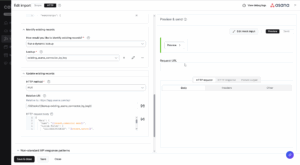
To prevent duplicates, the flow uses a dynamic lookup to check whether an incoming Jira story already has a corresponding task in Asana.

The lookup checks Asana tasks for a custom field (the Jira Key) and compares them to the Jira issue key of the incoming record. The request uses a relative URI like:
/1.0/workspaces/10018867588589/tasks/search?custom_fields.{{asana_key_id}}.value={{incoming_record_jira_key}}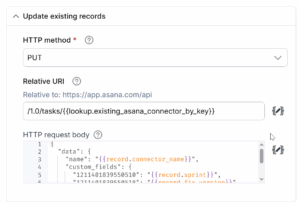
If a matching task is found, the flow avoids creating a duplicate and instead issues a PUT request to update fields that are subject to change (e.g., status or description). Unlike the “create” payload, the project and section don’t need to be respecified.
Instead of manually translating Jira Stories into tasks, the TPM team has every task automatically generated and updated from Asana using this flow.
Integration insights
Expand your knowledge on all things integration and automation. Discover expert guidance, tips, and best practices with these resources.